
Creatives
Working with creatives
Creative technical specs
Viber Format Creatives specs
Advanced Creative settings
UI template: Native
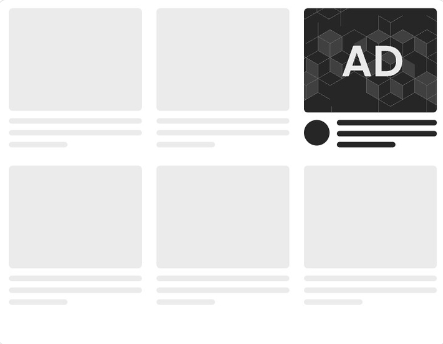
Native advertising looks like a part of the content in an environment it is placed in (a website, an app, etc.) and thus doesn’t repel users. This ad format is popular in social media and news feeds.
A Native template consists of several blocks.
General Information
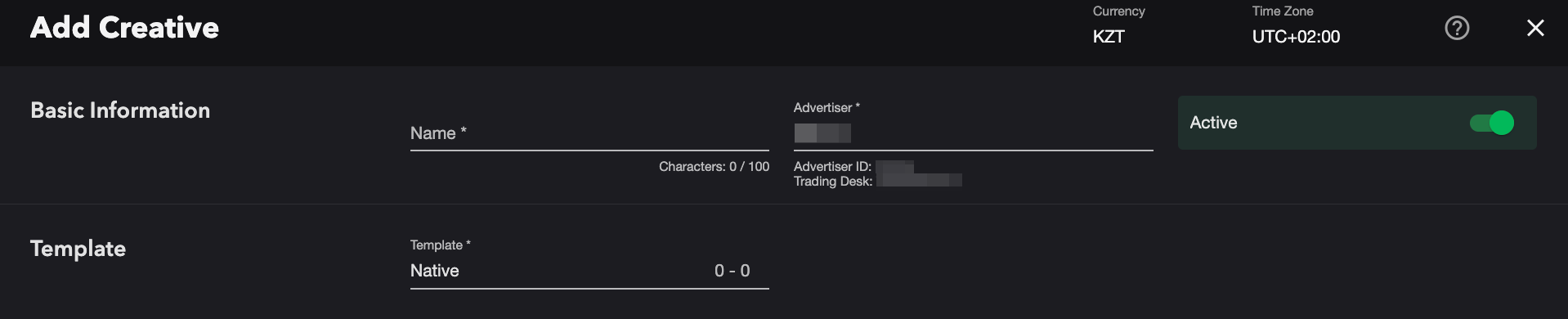
- Add the creative through the 'Profile' blade or separately through the 'Creatives Studio' or "Creatives" blade.
- Enter a Name.
- In case of adding the creative from the 'Creatives Studio' or 'Creatives' blade select an Advertiser from the available list.
- Choose the Native template to structure your creative.
Creative Settings
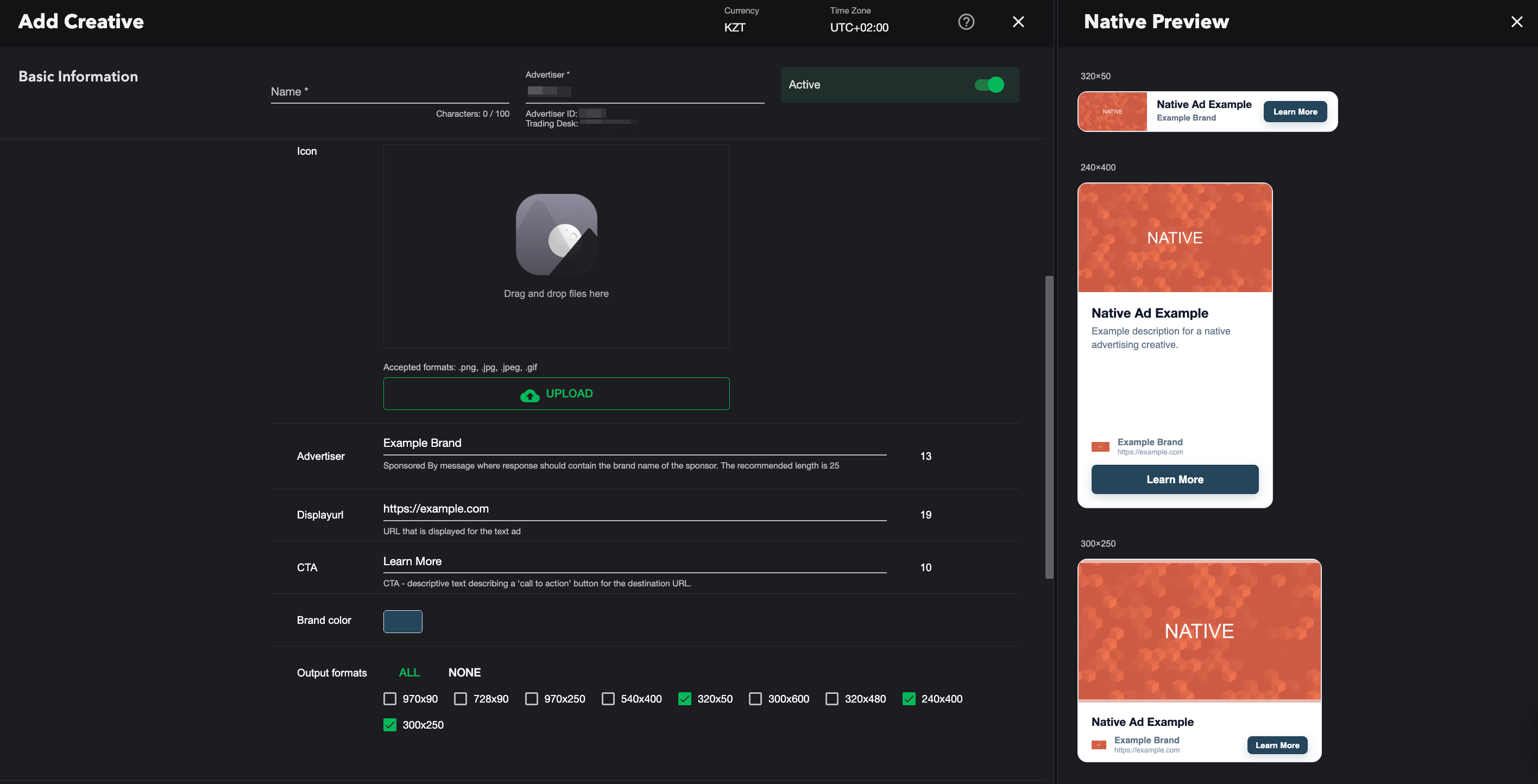
- Title — a title or a short text associated with the product or service being advertised.
- Description — a descriptive text associated with the product or service being advertised.
- Main image — upload the main image/video, adhering to the specified dimensions.
- Accepted formats for image: .png, .jpg, .jpeg, .gif
- Accepted formats for video: .mp4, .webm
Image/video fitting supports two models: Fit (contain with blur background) and Fill (crop/cover).
Recommended size is 1280x720. - Icon — upload an image from your computer. Press Upload and choose the file you need.
- Advertiser — a “Sponsored by” message containing the sponsor’s brand name.
- Displayurl — a URL that is displayed for the text ad.
- CTA — text displayed on the call-to-action button.
- Brand color — defines the color of the CTA button.
- Output formats — select one or more output formats from the list. Click “None” to clear all selections.
Character limitations for the following fields:
- Title — maximum of 60 characters;
- Description — maximum of 140 characters;
- Advertiser name — maximum of 25 characters;
- Domain — maximum of 30 characters;
- CTA button text — maximum of 15 characters.
Chrome will limit the resources a display ad can use before the user interacts with the ad by removing heavy creatives from the page. An ad is considered heavy if the user has not interacted with it (for example, has not tapped or clicked it) and it meets any of the following criteria:
– Uses the main thread for more than 60 seconds in total
– Uses the main thread for more than 15 seconds in any 30-second window
– Uses more than 4 megabytes of network bandwidth
– Uses the main thread for more than 60 seconds in total
– Uses the main thread for more than 15 seconds in any 30-second window
– Uses more than 4 megabytes of network bandwidth
For any questions regarding ad manuals please contact the support manager of your account.
Updated on June 09, 2026