
UI template: HTML5 Float
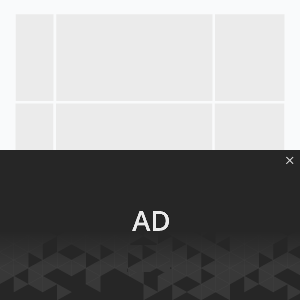
A type of full-width ad that appears at the bottom of the screen and remains visible until the user closes it by clicking the Close button. The height of the ad for this format is 30% of the screen’s height. After clicking the banner, the user will be redirected to the target page, and the banner will be closed.
Inventory Compatibility:
Local inventory (direct publisher zones) only.
Supported platforms
| Desktop | Tablet | Phone | |||
|---|---|---|---|---|---|
| Windows | Mac | iOS | Android | iOS | Android |
| + | + | ver. 7.0+ | ver. 4.4+ | ver. 7.0+ | ver. 4.4+ |
Download an archive with the template:
How to work with an archive (template)
- Unpack an archive with a creative template.
- For creative preview use the preview page or copy all files to a folder index – banners – banner – body and open a file index.html in a browser using localhost. For that, a web server has to be installed (e.g. IIS for Windows, Apache for Mac OS).
- Open the file body.html with the text editor and edit the code snippet inside tags <body> </body> (between the USER’S CODE START and USER’S CODE END comments).
Additionally, you can check the preview of the creative by copying the link to it and viewing it from your mobile device.
- Edit a file js/body.js.
- Save and archive all banner assets in .zip (you should archive the files, not the folder that contains the files).
Format requirements
ZIP archive
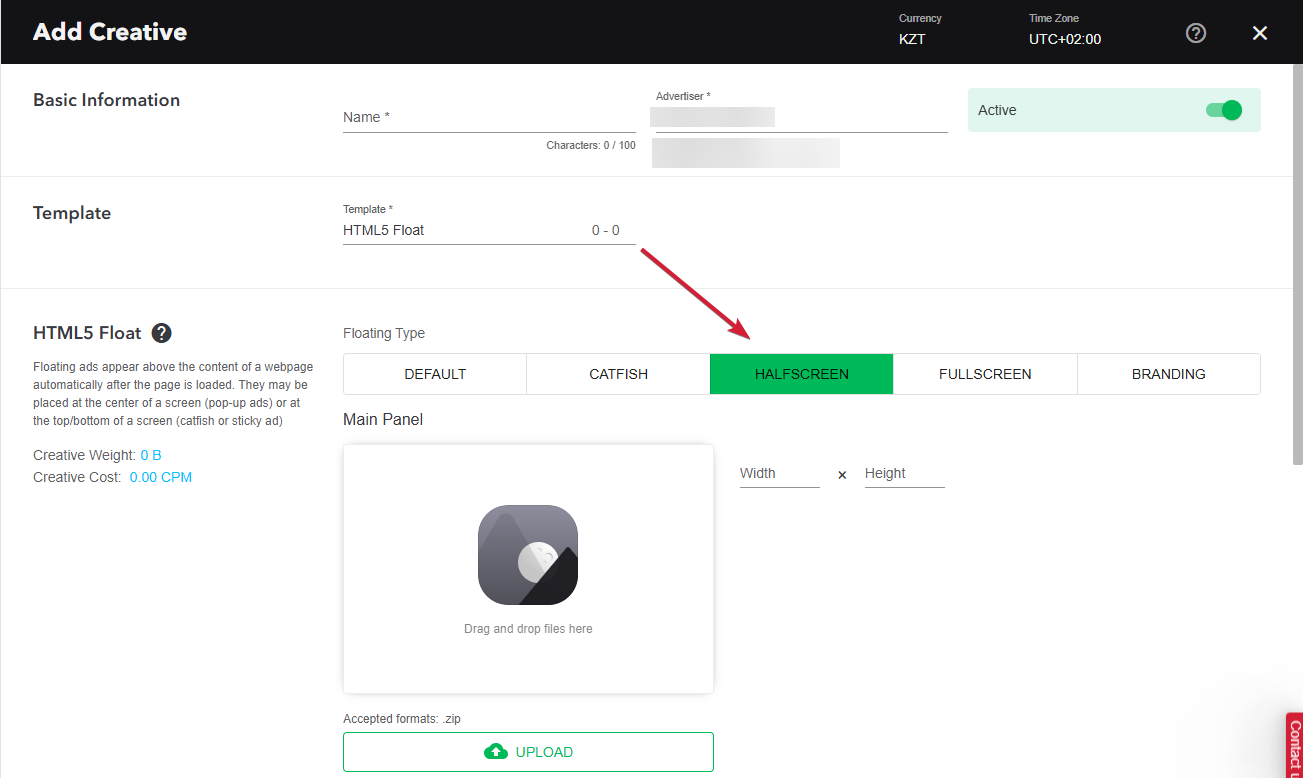
The banner with all banner assets should be archived as a .zip file. Use the .zip file with the template.
HTML file
The HTML file must define all used sources (libraries, images, etc). A recommended file name is body.html.
API connection and usage
globalHTML5Api connects automatically, called the following way:
- Expand the globalHTML5Api code
globalHTML5Api objects and methods should be defined inside a called function. All used modules should be listed as function parameters. A sample of globalHTML5Api.init usage for the Halfscreen format looks the following way:
- Expand the globalHTML5Api.init sample code
A sample of the Close button and click handling (from js/body.js):
- Expand the Close button and click sample code
globalHTML5Api.init Parameters
| Key | Properties | Type | Description | |
|---|---|---|---|---|
| resize | – | Array | Array of objects | |
| name (required) | String | Object name. Each object presents a particular container state (resizeState) | ||
| fixed | – | Object with properties. Describes the container position relatively to a browser window | ||
| vertical (required) | bottom | The vertical alignment of the container | ||
| horizontal (required) | center | The horizontal alignment of the container | ||
| width (required) | String|Number | Banner container width | ||
| height (required) | String|Number | Banner container height | ||
globalHTML5Api Methods
| Method | Arguments | Type | Description |
|---|---|---|---|
| click(URL) | – | – | Method to call the clickthrough. Target URL may be set as a parameter or from the user interface. The URL set in the code has a higher priority than the URL set from the UI, which can lead to a conflict. Therefore, it is mandatory to use only one of the available methods. |
| URL (optional) | String | Target URL | |
| src(URL) | – | – | Method returns the absolute path to file |
| URL (optional) | String | Relative path to file | |
| close(preventEvent) | – | – | Method to close the banner |
| preventEvent (optional) | Boolean | Prevents sending a tracking event close (banner closing). Used in the template after a click, so that closing the banner after the clickthrough is not counted as a close. Default: false | |
| globalHTML5Api.autoClose(timeMS, preventEvent) | – | – | Method for automatic banner closing after a set amount of milliseconds |
| timeMS (required) | Number | Amount of milliseconds before the banner closing | |
| preventEvent (optional) | Boolean | Prevents sending a tracking event close (banner closing). If the value is false, the event will be sent. Default: false |
Video
To add a video to your creative, use the standard HTML5 <video> tag. You don’t need an extra player or module.
- Put the video file in the archive, for example in the
imagesfolder. You can also link to a video hosted on an external server (see the note below). - Open body.html and paste the
<video>tag inside<body>, between the USER’S CODE START and USER’S CODE END comments:<video src="images/output.mp4" autoplay loop muted controls style="position: absolute; left: 0; top: 0;"></video>
- In
src, set the path to your video file, relative to body.html. If the video is hosted externally, put its full URL here.
Attributes used in the example:
| Attribute | What it does |
|---|---|
autoplay |
Starts the video as soon as the banner loads. |
muted |
Starts the video with the sound off. Browsers block autoplay with sound, so keep muted if you use autoplay. |
loop |
Replays the video from the start when it ends. |
controls |
Shows the player controls (play/pause, sound, timeline). Leave it out if you don’t want controls. |
style |
Sets where the video sits inside the banner. You can change the position and size to fit your layout. |
Images
Recommended file types: .jpg, .png, .gif, .svg
File size
Up to 50 Mb
Event tracking
- View
- Confirmed view
- Click
– Uses the main thread for more than 60 seconds in total
– Uses the main thread for more than 15 seconds in any 30-second window
– Uses more than 4 megabytes of network bandwidth